Visual Builder

Design Every Conversation Path

The visual workflow builder for complex AI agents. Drag and drop nodes, connect conversation paths, and control exactly what your agent says at every step. Perfect for multi-step processes that need precision.
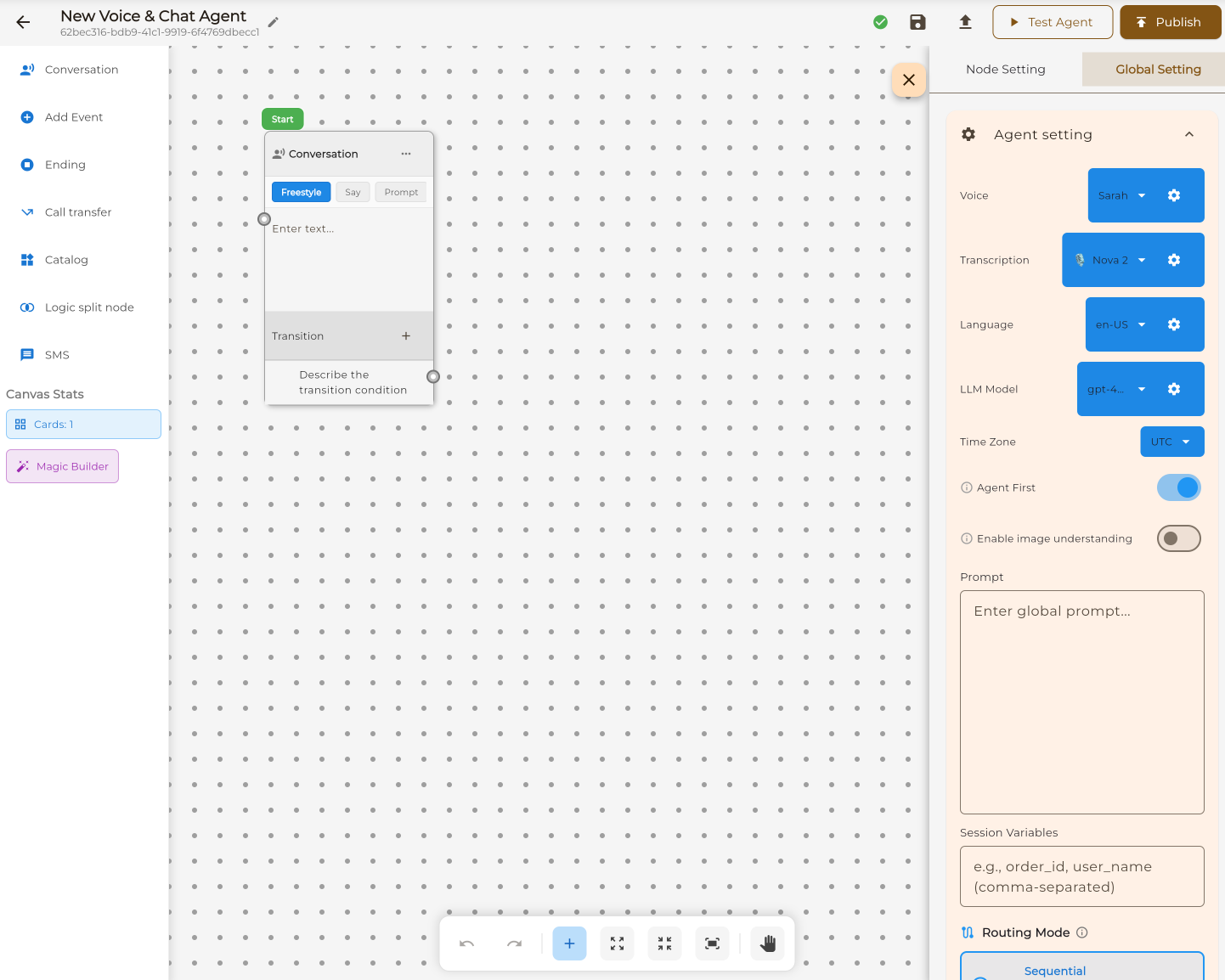
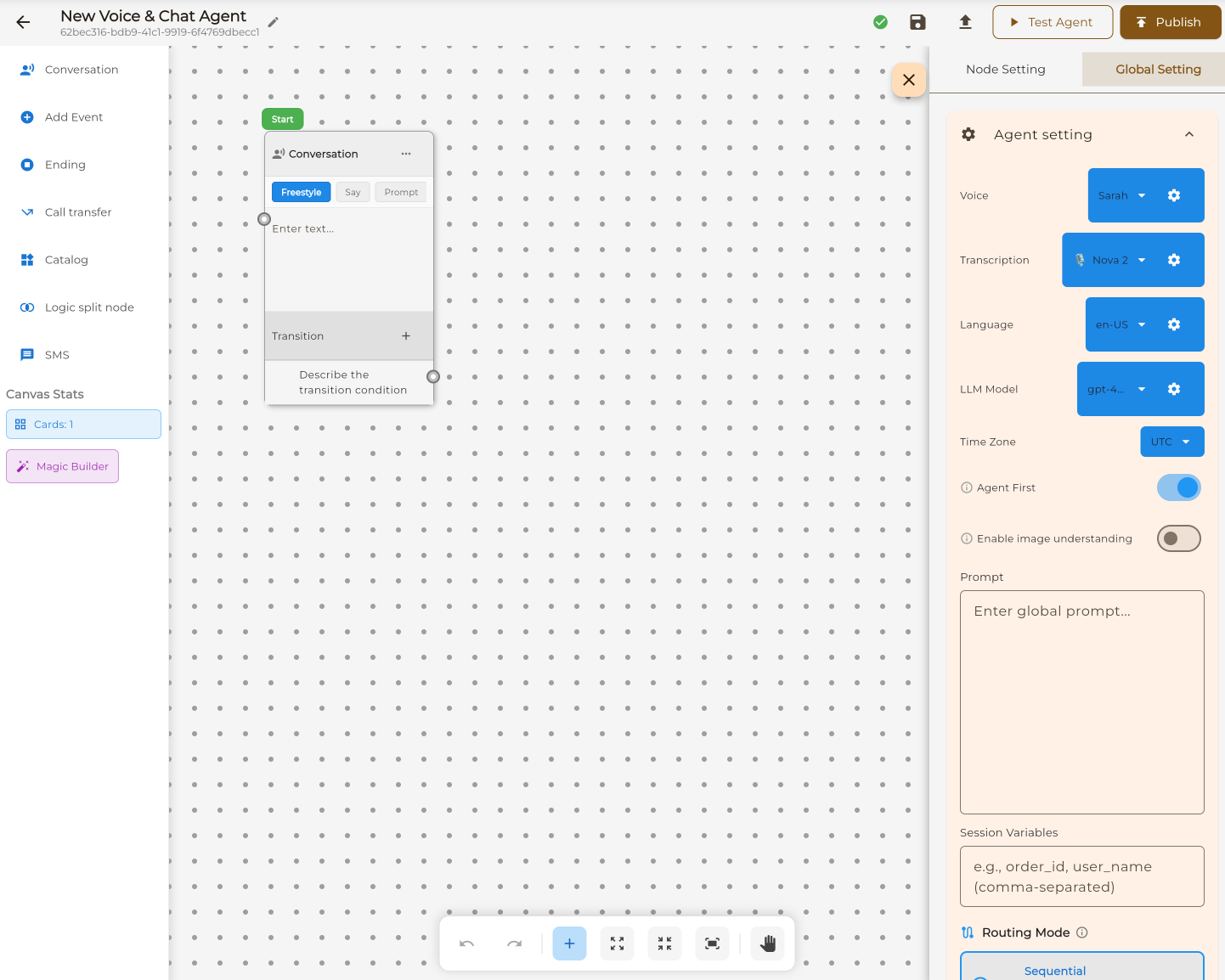
Conversation Flow Visual Builder Interface

What is Conversation Flow?

Conversation Flow is a visual canvas where you design AI agents by connecting nodes. Each node represents a step in the conversation — you control exactly what happens at every point.

Visual Canvas

Infinite zoomable canvas with drag-and-drop nodes

Connected Paths

Draw connections between nodes to define conversation flow

Full Control

Define exactly what the agent says at each step

Branching Logic

Create conditional paths based on user responses

How Conversation Flow Works

Build your agent step by step with our visual workflow builder.

1

Add Nodes

Drag conversation steps from the sidebar onto the canvas.

2

Configure Nodes

Set what the agent says and does at each step.

3

Connect the Flow

Draw lines between nodes to define conversation paths.

4

Publish & Go Live

Connect a phone number and your agent is ready.

Node Types

Each node type serves a specific purpose in your conversation flow. Combine them to build powerful agents.

Conversation

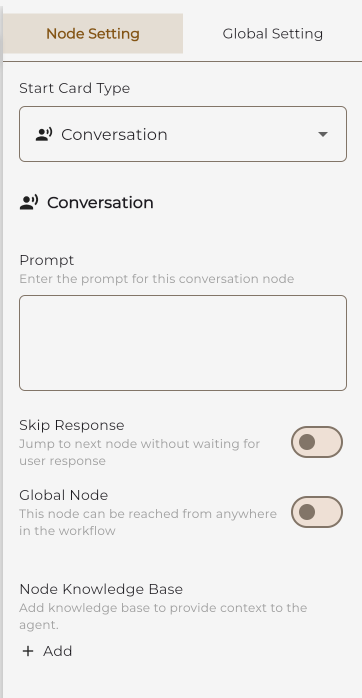
The main dialogue node. Define what the agent says and how it responds to user input.

Most Used

Logic Split

Create conditional branches. Route conversations based on user responses or collected data.

Extract Variable

Collect user information like name, email, phone number, or custom data fields.

Add Event

Trigger external actions like calendar booking, webhooks, or custom integrations.

Send SMS

Send text messages to the caller with confirmations, links, or follow-up information.

Call Transfer

Transfer the call to a human agent or another phone number when needed.

End Call

Gracefully conclude the conversation with a closing message.

Catalog Lookup

Search your product catalog and share information with callers.

Canvas

Working with the Canvas

Master the visual workflow builder with these key features.

1

The Infinite Canvas

Your workspace is an infinite, zoomable canvas. Pan around by dragging, zoom with your scroll wheel or trackpad, and organize your nodes however you like.

  • Zoom from 10% to 500% for any level of detail
  • Pan in any direction — no boundaries
  • Lock the canvas to prevent accidental changes
  • Undo/redo with keyboard shortcuts or buttons
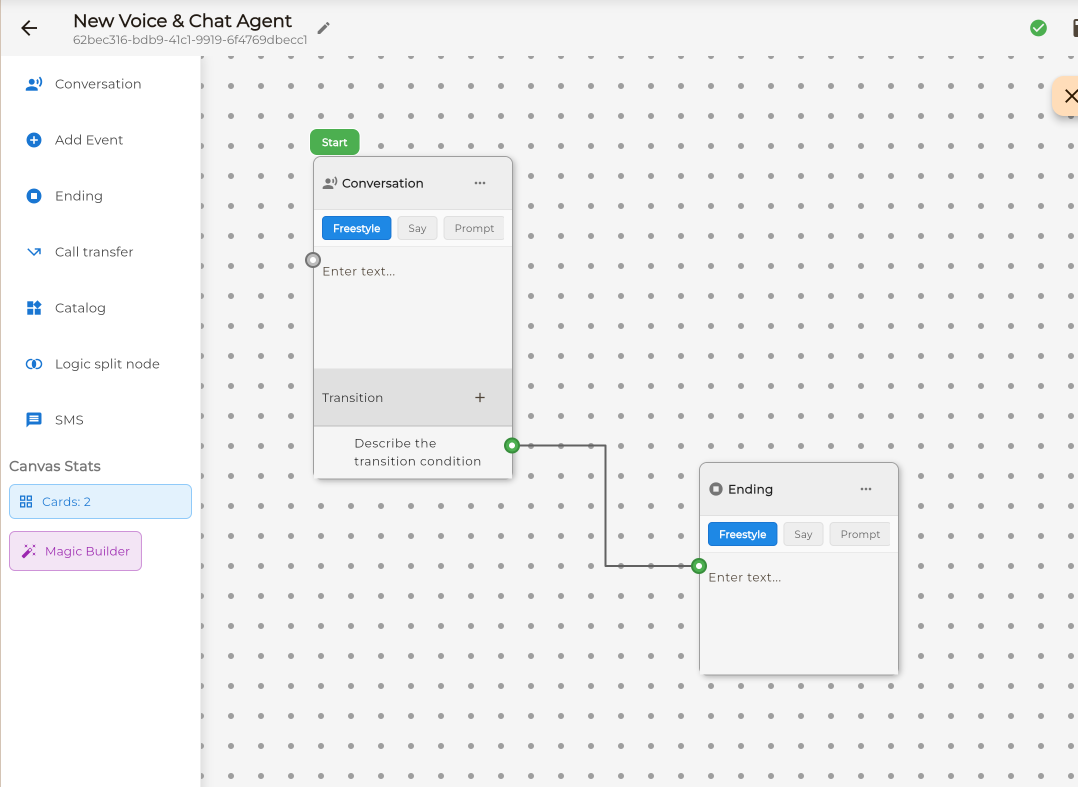
Infinite canvas with nodes
2

Creating Connections

Connect nodes by dragging from one port to another. Each node has input and output ports that define how conversations flow between steps.

  • Drag from output (right) to input (left) ports
  • Visual feedback shows valid connection targets
  • Hover over connections to delete them
  • Multiple outputs per node for branching
Creating connections between nodes
3

Settings & Testing

The right panel gives you access to global settings, node configuration, and a built-in test environment to try your agent before publishing.

  • Global Settings: Voice, language, LLM model
  • Node Settings: Configure selected node
  • Test Agent: Chat with your agent live
  • Events: Configure triggers and actions
Right panel with settings

Global Settings

Configure your agent's voice, language, AI model, and behavior from the right panel.

Voice Settings

  • TTS Provider (ElevenLabs, MiniMax, OpenAI)
  • Voice selection and cloning
  • Speed, stability, similarity
  • Volume and temperature

Speech Recognition

  • STT Provider (Deepgram, Google, etc.)
  • Language and model selection
  • Punctuation and interim results
  • Utterance end detection

AI Model

  • LLM selection (GPT-4, Claude, etc.)
  • Temperature and creativity
  • Max tokens and response length
  • Cost mode optimization

Call Settings

  • Max call duration
  • Silence timeout
  • Interruption handling
  • Background noise

Knowledge Base

  • Attach documents for context
  • PDF, DOCX, TXT, CSV support
  • Web URL scraping
  • Custom Q&A pairs

Advanced

  • Session variables
  • Webhook integrations
  • Voice fingerprinting
  • Vision/image support

Conversation Flow vs Single Prompt

Choose the right approach for your use case.

Feature Conversation Flow Single Prompt
Setup Time Hours (thorough design) Minutes
Control Level Full — every step defined AI decides flow
Visual Builder ✓ Drag-and-drop canvas ✗ Text editor only
Branching Logic ✓ Unlimited branches Limited (AI-driven)
Best For Complex multi-step processes General support, FAQ
Predictability Exact scripted paths Natural but variable
Learning Curve Visual builder to learn None — just write

Need something simpler? Try our prompt-based approach.

Learn About Single Prompt

Perfect For These Use Cases

Conversation Flow excels when you need precise control over multi-step processes.

Lead Qualification

Multi-step qualification with branching based on budget, timeline, and needs.

Order Processing

Step-by-step order collection with validation and confirmation at each stage.

Surveys & Feedback

Structured question flows with skip logic and conditional follow-ups.

Customer Onboarding

Guided onboarding calls that collect information in a specific order.

Technical Support

Troubleshooting decision trees with specific solutions for each issue type.

Complex Scheduling

Appointment booking with multiple conditions, preferences, and confirmations.

Frequently Asked Questions

There's no hard limit on the number of nodes. We've tested workflows with hundreds of nodes. However, for maintainability, we recommend keeping workflows focused — if you find yourself with 50+ nodes, consider splitting into multiple agents.
Yes! Right-click any node to duplicate it with all its settings. You can also copy entire sections of your workflow and paste them elsewhere on the canvas.
Use the "Test Agent" tab in the right panel. You can chat with your agent in real-time and see which node is currently active. The canvas highlights the active node so you can follow the conversation flow visually.
Absolutely! Variables collected via "Extract Variable" nodes are available throughout the entire conversation. Use {{variable_name}} syntax in any node's text content to insert the value dynamically.
Use Single Prompt when conversations are unpredictable and you want the AI to handle flow naturally — like general support, FAQ, or simple information requests. Use Conversation Flow when you need precise control over every step.