Text-to-Speech
Convert any text into natural, lifelike speech using multiple providers, custom voices, and emotion enhancement. Generate high-quality audio for your AI agents, content, or applications.
Overview
Dotclone's Text-to-Speech (TTS) engine lets you convert text into human-like speech instantly. Whether you're building voice agents, creating audio content, or adding speech to your app, TTS provides:
Multiple Providers
Choose from ElevenLabs, MiniMax, OpenAI, and more
Voice Cloning
Clone any voice with 10-30 seconds of audio
Emotion & Enhancement
Add emotions, whispers, laughs, and more
50+ Languages
Generate speech in multiple languages and accents
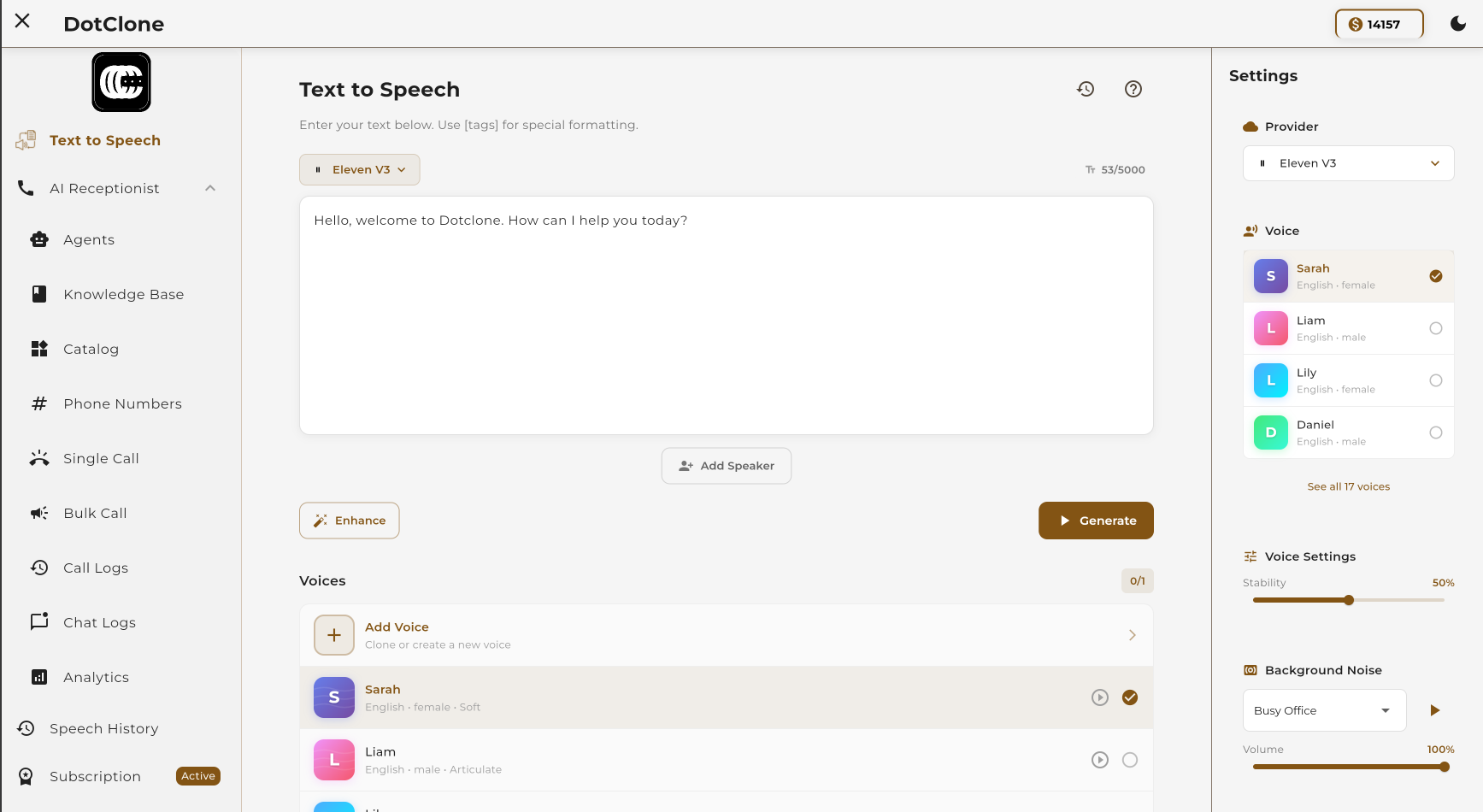 The Text-to-Speech interface in Dotclone
How to Generate Speech
Follow these steps to generate your first speech audio:
Enter Your Text
Type or paste the text you want to convert.
Navigate to Text-to-Speech in the sidebar. Enter your text in the large input area. You can enter anything from a single sentence to multiple paragraphs.
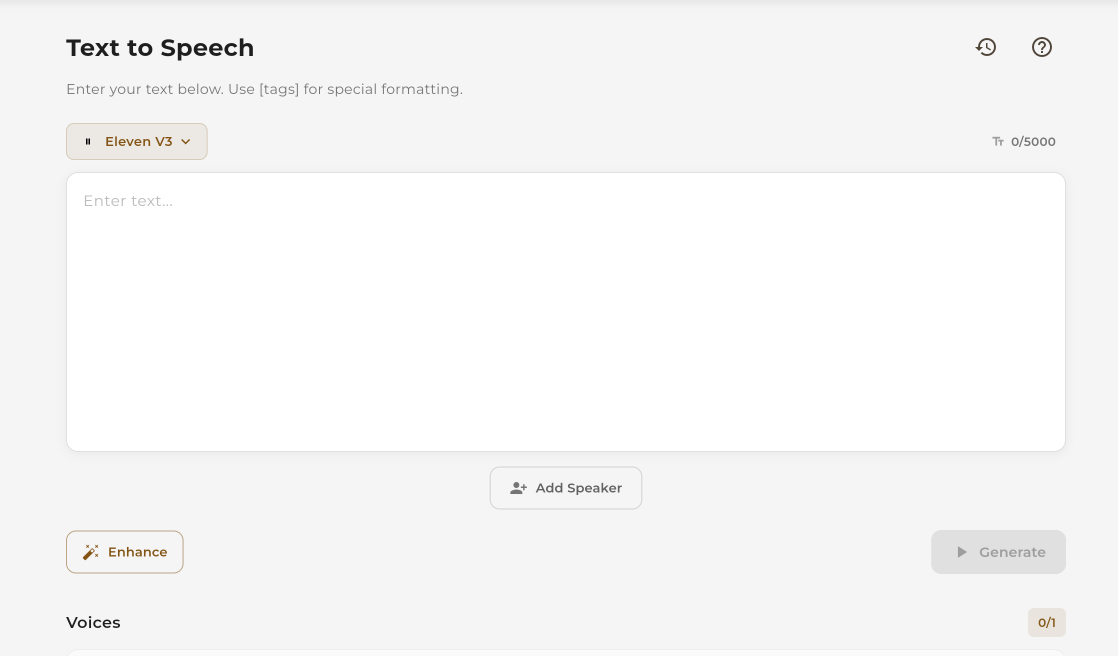 Enter your text in the input area
Select a Provider
Choose your preferred TTS provider.
Click on the provider dropdown and select from the available options. Each provider has unique voice qualities and features.
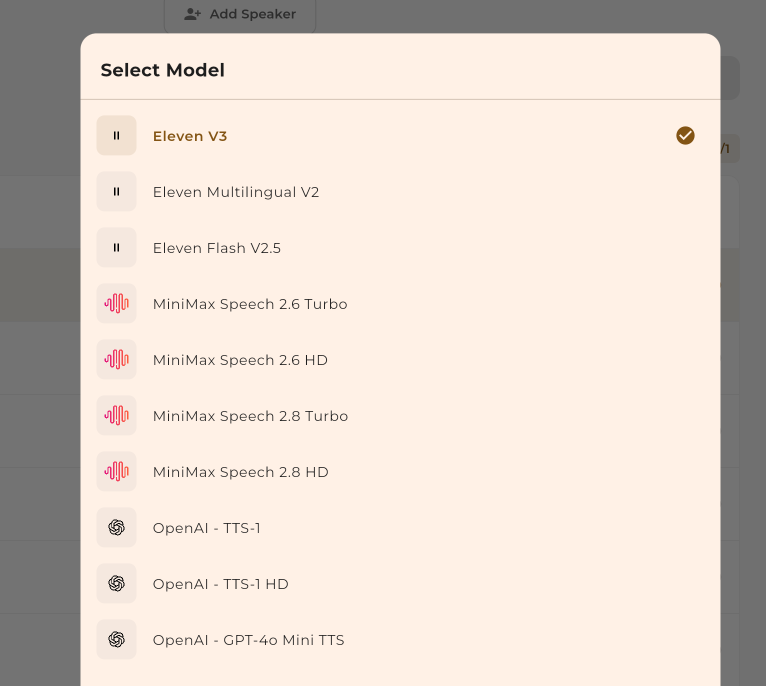 Choose your TTS provider
Choose a Voice
Select a voice that fits your needs.
Browse the available voices for your selected provider. You can preview voices before selecting. Each provider has its own set of built-in voices.
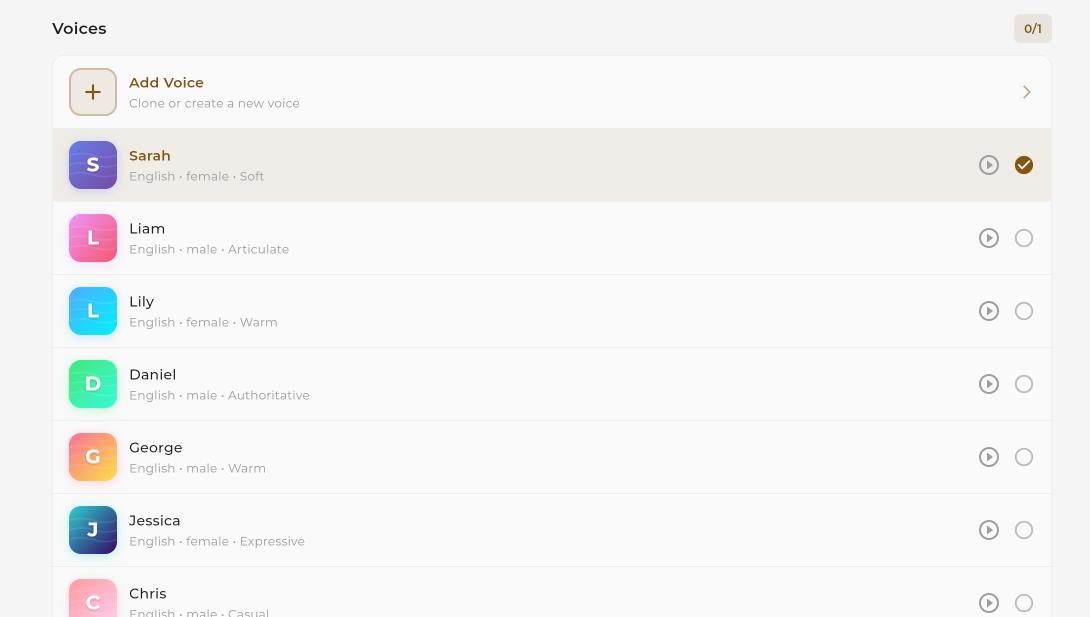 Browse and select a voice
 Preview a voice before selecting
Generate & Download
Create your audio and save it.
Click the Generate button. Once complete, you can play the audio, download it, or share it.
 Click Generate to create your audio
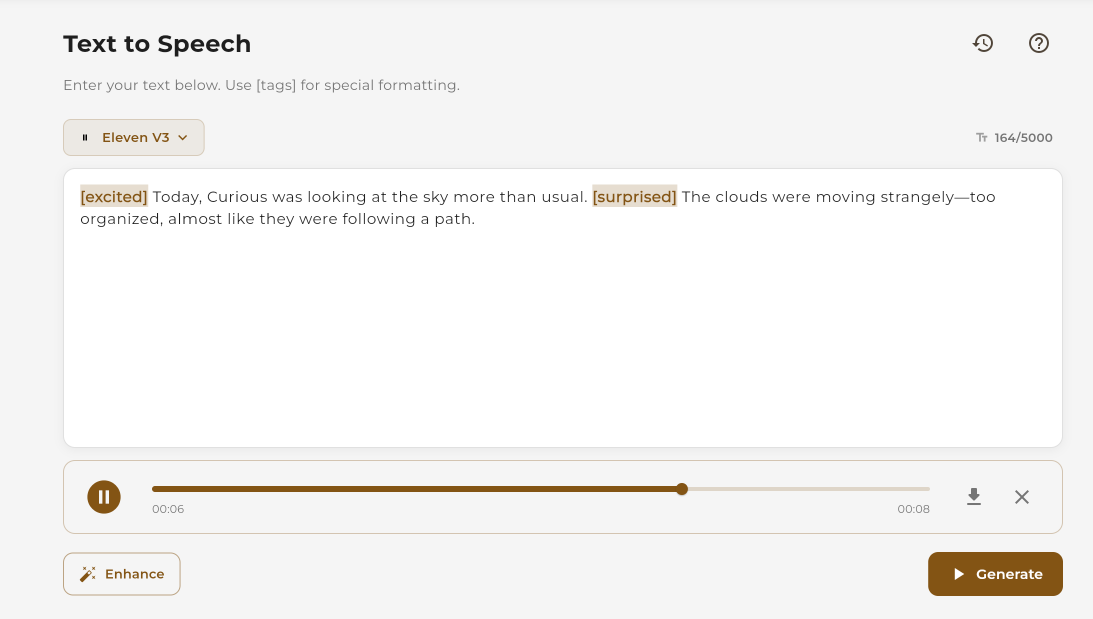 Download or share your generated audio
Writing Better Text for TTS
The quality of your output depends heavily on how you write your input text. Here are tips for better results:
Use Punctuation
Proper punctuation creates natural pauses. Use commas, periods, and ellipses for pacing.
Break Long Sentences
Short sentences sound more natural. Break complex sentences into smaller parts.
Spell Out Abbreviations
Write out abbreviations and acronyms for proper pronunciation.
Use Phonetic Spelling
For unusual names or words, spell them phonetically.
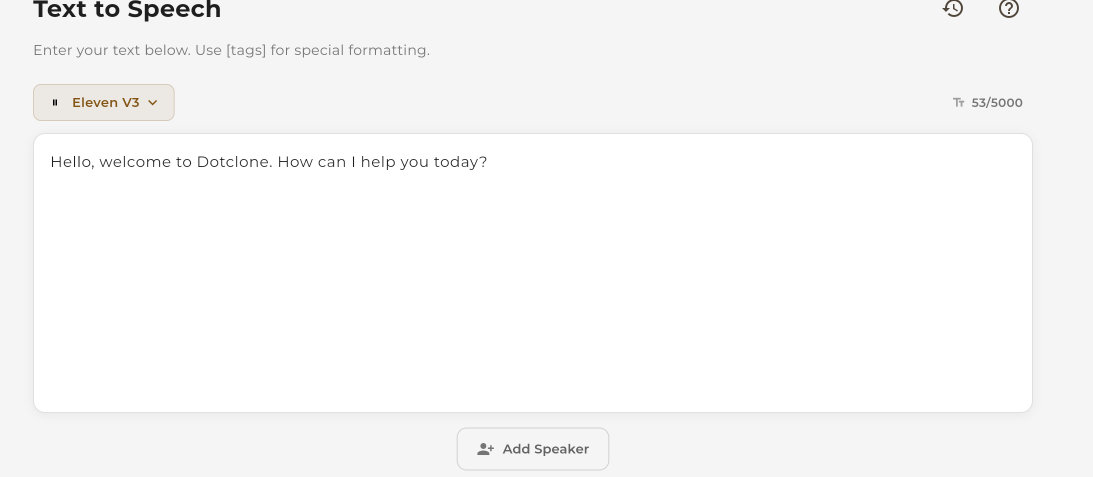 Example of well-formatted text for TTS
Providers
Dotclone integrates with multiple TTS providers. Each provider has its own voices, models, and settings. Choose based on your quality, speed, and cost requirements.
| Provider | Models | Best For | Features |
|---|---|---|---|
| ElevenLabs Recommended |
eleven_v3eleven_multilingual_v2eleven_turbo_v2_5eleven_flash_v2_5
|
Highest quality, expressive voices | Emotion enhancement, voice cloning |
| MiniMax |
speech-2.8-turbospeech-2.8-hdspeech-2.6-turbospeech-2.6-hd
|
Emotion brackets, sound effects | Background noise, emotion tags |
| OpenAI |
tts-1tts-1-hdgpt-4o-mini-tts
|
Fast, reliable, good quality | Speed control, multiple voices |
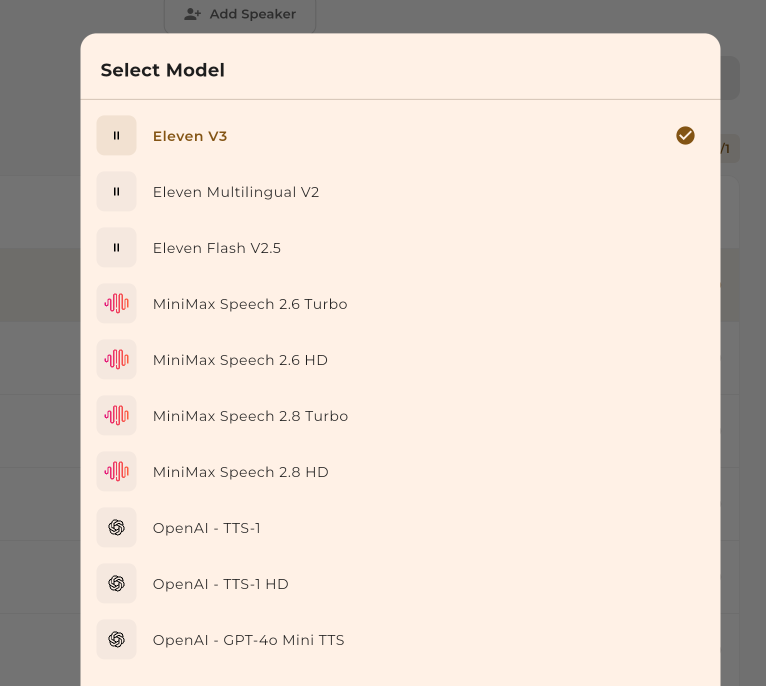 Select a provider from the dropdown
 Each provider has multiple models to choose from
Voices
Each provider offers a unique set of built-in voices. Browse, preview, and select the voice that best fits your use case.
Built-in Voices
Built-in voices are pre-trained voices provided by each TTS provider. They cover various genders, accents, ages, and speaking styles.
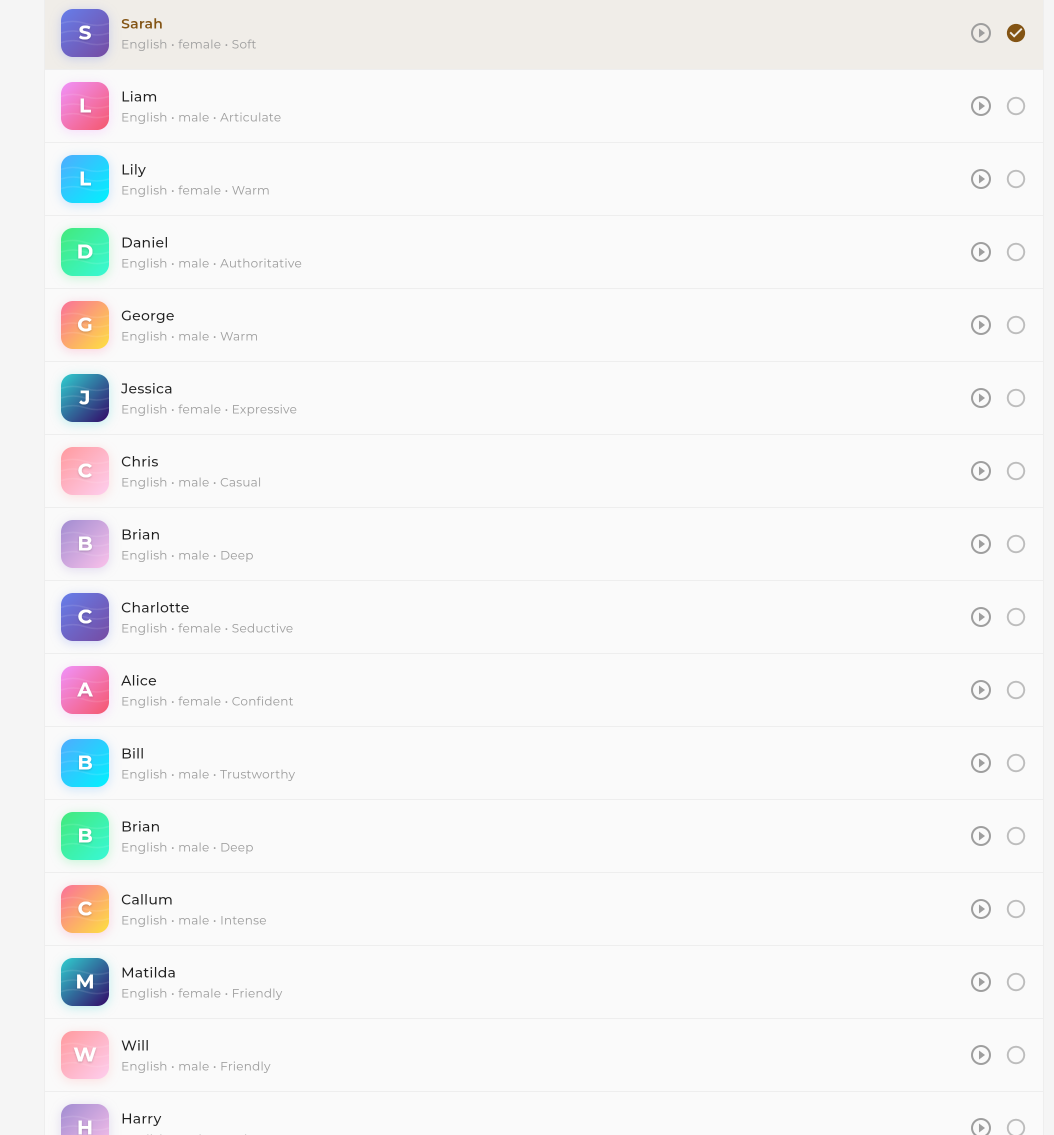 Browse available voices for your selected provider
 View voice details including language and style
Selecting a Voice
Click on any voice to select it. You can preview the voice by clicking the play button next to each voice name before making your selection.
 Click to select a voice
Voice Cloning
Clone any voice with just 10-30 seconds of audio. Cloned voices can be used with any TTS provider in Dotclone.
How to Clone a Voice
Go to Voice Cloning
Navigate to the Voice Cloning section.
 Click Voice Cloning in the sidebar
Upload Audio Sample
Upload 10-30 seconds of clear audio.
For best results, use audio that is:
- Clear speech without background noise
- Single speaker only
- 10-30 seconds in length
- Natural speaking pace (not reading)
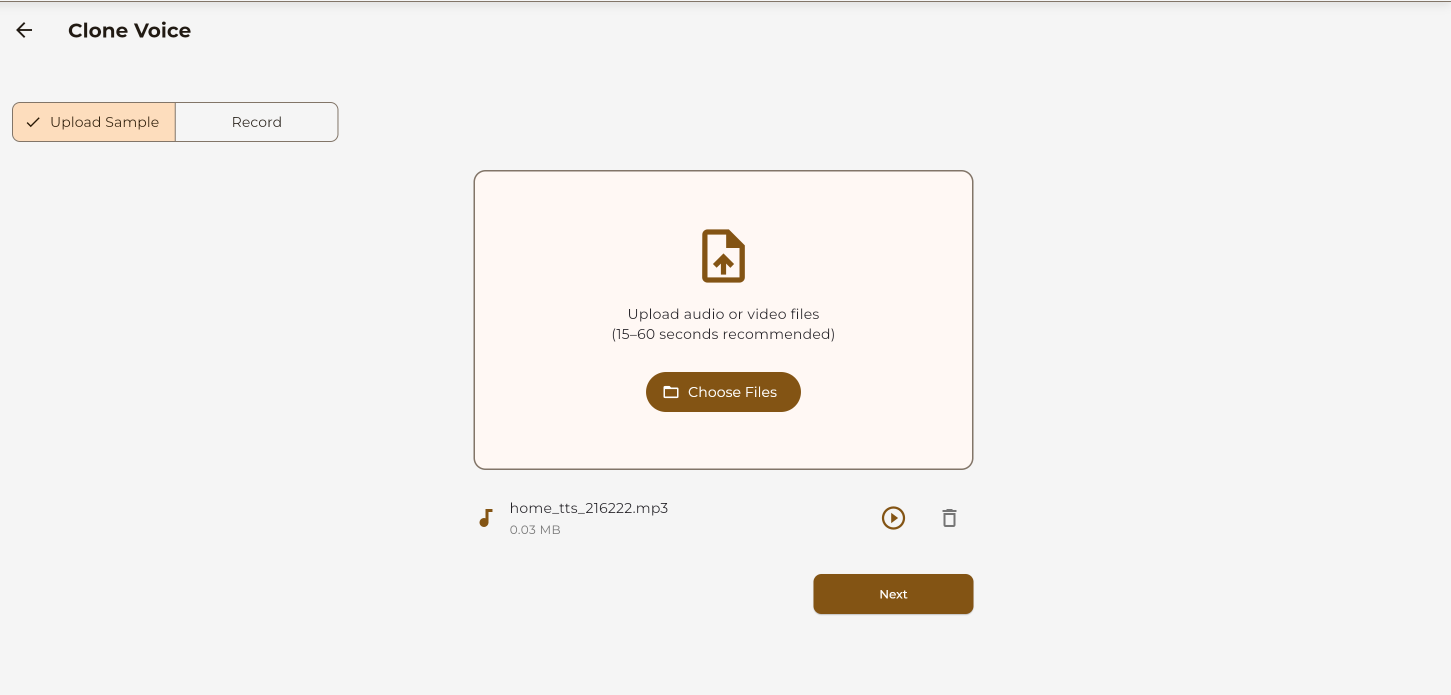 Upload your audio sample
Name Your Voice
Give your cloned voice a descriptive name.
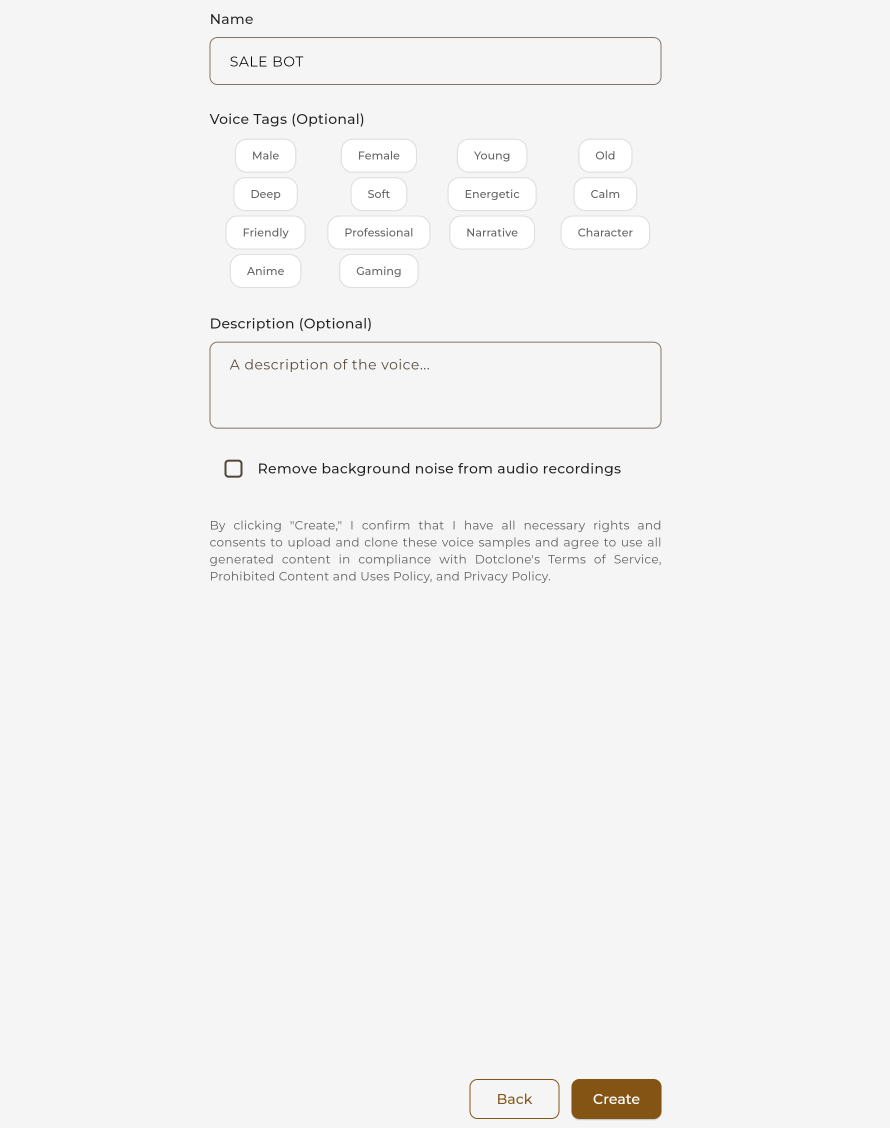 Enter a name for your cloned voice
Clone & Use
Process the voice and start using it.
Click Clone Voice to process. Once complete, your cloned voice will appear in the voice dropdown when using TTS.
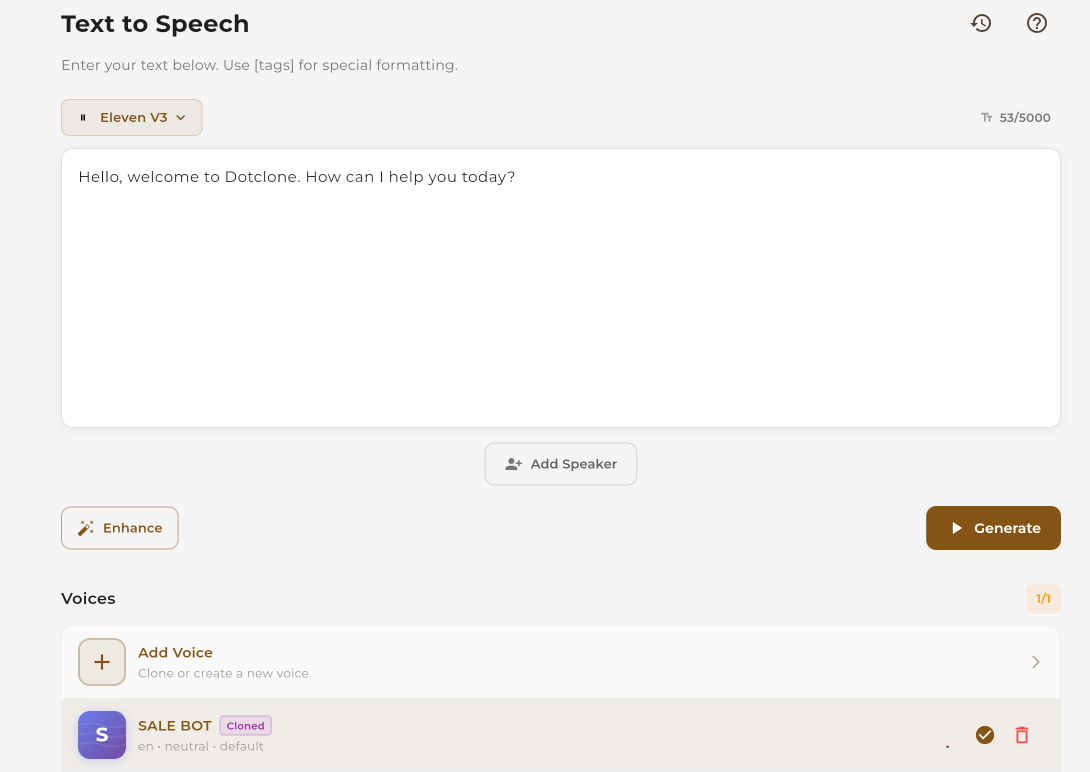 Your cloned voice is ready to use
 Select your cloned voice in the TTS interface
Deleting a Cloned Voice
To delete a cloned voice, go to Voice Cloning, find the voice you want to remove, and click the Delete button.
 Click the delete button to remove a cloned voice
Enhance & Emotion
Add emotions, expressions, and style to your generated speech. Make your audio more engaging and natural-sounding.
- ElevenLabs:
eleven_v3 - MiniMax:
speech-2.8-turbo,speech-2.8-hd
Using Emotion Brackets
Add emotion tags in square brackets directly in your text. The TTS engine will interpret these and apply the corresponding emotion to the speech.
Syntax
[emotion] Your text hereExamples
[excited] Wow, this is amazing! [laughs] I can't believe it worked! [whispers] Don't tell anyone...

[sad] I'm sorry to hear that happened.

[angry] This is completely unacceptable!

[cheerful] Good morning! How can I help you today?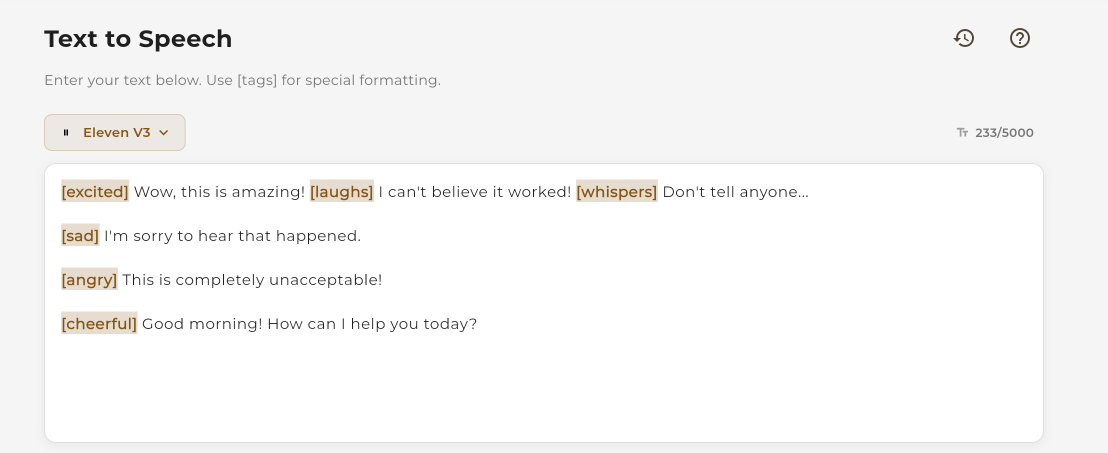 Add emotion brackets directly in your text
 Use the Enhance button for automatic emotion suggestions
Provider Settings
Each provider and model has specific settings you can adjust to fine-tune your audio output.
ElevenLabs Settings
eleven_v3
| Setting | Range | Description |
|---|---|---|
| Stability | 0% - 100% | Higher = more consistent, Lower = more expressive |
eleven_multilingual_v2, eleven_turbo_v2_5, eleven_flash_v2_5
| Setting | Range | Description |
|---|---|---|
| Speed | 0.5x - 2.0x | Playback speed of the generated audio |
| Stability | 0% - 100% | Voice consistency vs expressiveness |
| Clarity | 0% - 100% | Clarity and enhancement of the voice |
MiniMax & OpenAI Settings
speech-2.8-turbo, speech-2.8-hd, speech-2.6-turbo, speech-2.6-hd, tts-1, tts-1-hd, gpt-4o-mini-tts
| Setting | Range | Description |
|---|---|---|
| Speed | 0.5x - 2.0x | Playback speed |
| Pitch | -12 to +12 | Voice pitch (higher or lower) |
| Intensity | 0% - 100% | Emotional intensity |
| Timber | 0% - 100% | Voice warmth and tone color |
 Adjust provider-specific settings in the settings panel
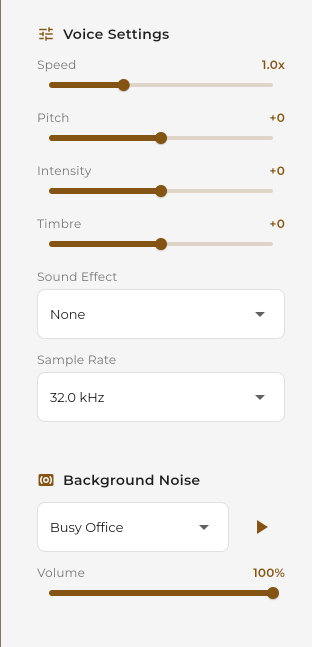 Use sliders to fine-tune your audio output
Sound Effects & Background Noise
Add ambient sounds and background noise to make your audio more immersive. This feature is available for MiniMax provider only.
Available Background Sounds
Choose from a variety of ambient sounds to mix with your generated speech:
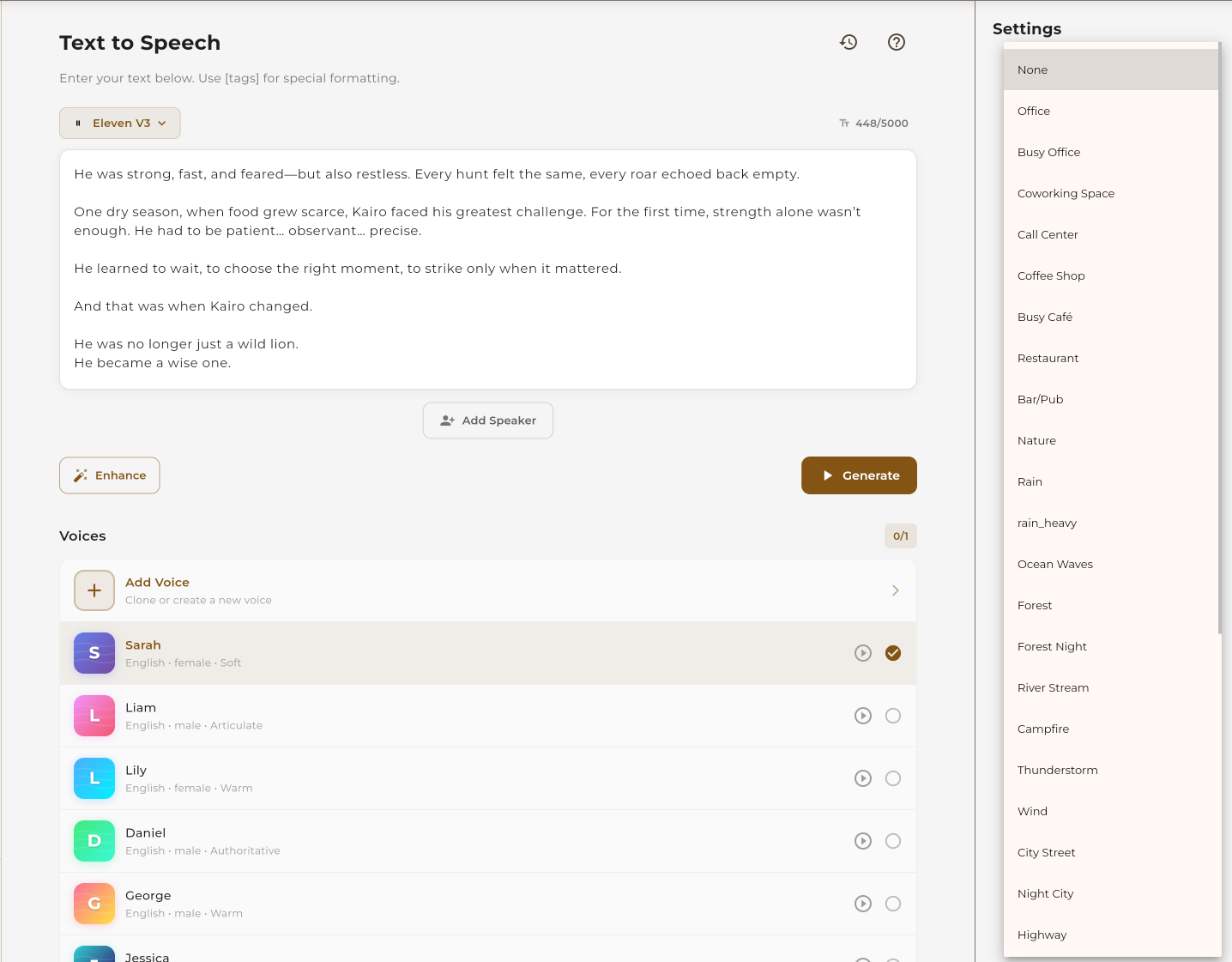 Select a background sound from the dropdown
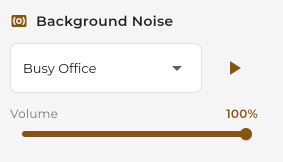 Adjust the mix level between speech and background
Supported Languages
Dotclone TTS supports over 50 languages and accents across all providers. Language availability may vary by provider and voice.
Popular Languages
- English (US, UK, AU)
- Spanish (ES, MX)
- French (FR, CA)
- German
- Italian
- Portuguese (BR, PT)
- Japanese
- Korean
- Chinese (Mandarin)
- Arabic
European Languages
- Dutch
- Polish
- Russian
- Swedish
- Norwegian
- Danish
- Finnish
- Greek
- Czech
- Romanian
Asian Languages
- Hindi
- Thai
- Vietnamese
- Indonesian
- Malay
- Filipino
- Tamil
- Bengali
- Urdu
- Turkish
 Select language when choosing a voice
Output Formats
Choose your preferred audio format when generating or downloading speech.
| Format | Extension | Best For | Quality |
|---|---|---|---|
| MP3 | .mp3 | General use, web, sharing | Good (compressed) |
| WAV | .wav | Professional audio, editing | Highest (uncompressed) |
| OGG | .ogg | Web applications, games | Good (compressed) |
| FLAC | .flac | Archival, lossless storage | Highest (lossless) |
 Select your preferred output format before downloading
TTS History
Every speech you generate is automatically saved to your history. Access, replay, or download any previously generated audio.
Accessing Your History
Click the History tab in the TTS interface to view all your previously generated audio files.
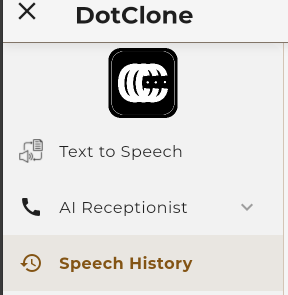 Click the History tab to view past generations
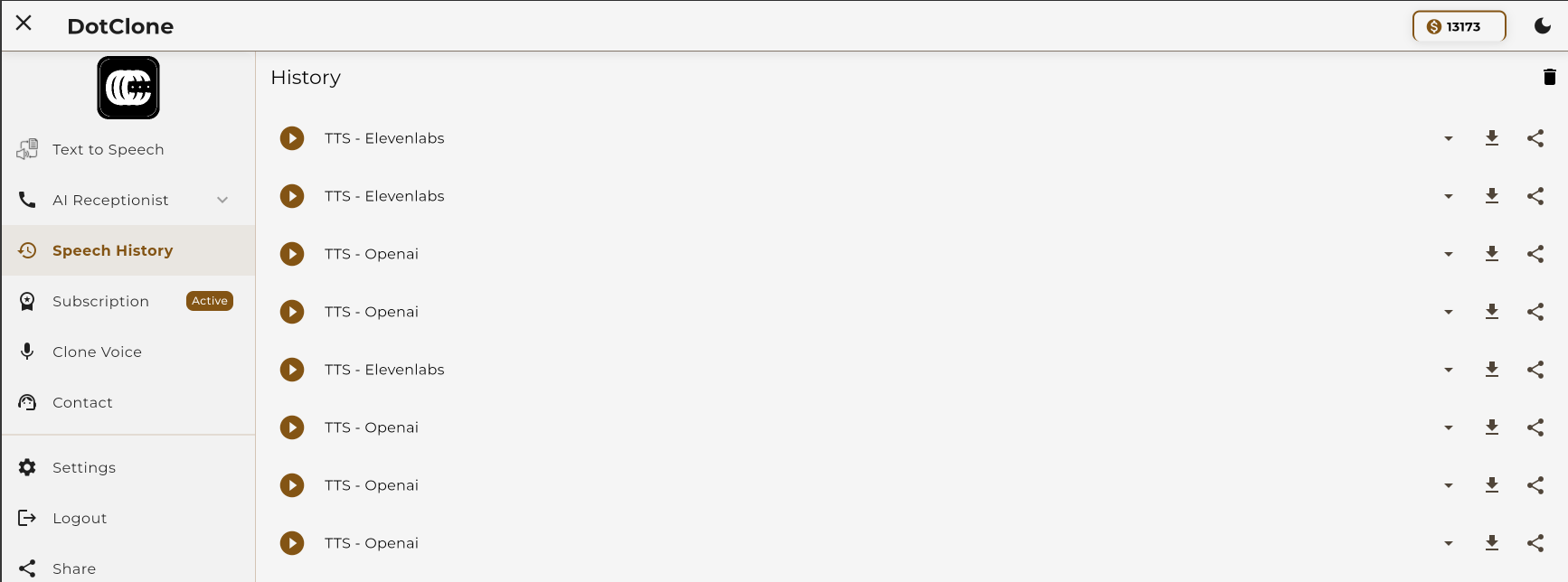 Browse your generated audio history
History Features
- Replay: Listen to any previous generation
- Download: Download the audio file again
- Copy Text: Copy the original text used
- Regenerate: Generate again with same or different settings
- Delete: Remove from history
 Actions available for each history item
API Usage
Generate speech programmatically using the Dotclone API or SDK.
Basic TTS Generation
from dotclone import Dotclone

client = Dotclone()

# Generate speech
audio = client.tts.generate(
    text="Hello! Welcome to Dotclone.",
    provider="elevenlabs",
    model="eleven_v3",
    voice="emma",
    settings={
        "stability": 75
    }
)

# Save the audio
audio.save("welcome.mp3")

# Or get the URL
print(audio.url)
With Emotion Enhancement
# Using emotion brackets
audio = client.tts.generate(
    text="[excited] Wow, this is amazing! [laughs] I love it!",
    provider="elevenlabs",
    model="eleven_v3",
    voice="emma"
)

audio.save("excited_speech.mp3")
Using a Cloned Voice
# Use your cloned voice
audio = client.tts.generate(
    text="This is my cloned voice speaking.",
    provider="elevenlabs",
    voice="my-cloned-voice-id"  # Your cloned voice ID
)

audio.save("cloned_voice.mp3")
Basic TTS Generation
import Dotclone from 'dotclone';

const client = new Dotclone();

// Generate speech
const audio = await client.tts.generate({
  text: "Hello! Welcome to Dotclone.",
  provider: "elevenlabs",
  model: "eleven_v3",
  voice: "emma",
  settings: {
    stability: 75
  }
});

// Get the audio URL
console.log(audio.url);

// Or download
await audio.download("welcome.mp3");
With Emotion Enhancement
// Using emotion brackets
const audio = await client.tts.generate({
  text: "[excited] Wow, this is amazing! [laughs] I love it!",
  provider: "elevenlabs",
  model: "eleven_v3",
  voice: "emma"
});

console.log(audio.url);
Basic TTS Generation
curl -X POST "https://api.dotclone.com/v1/tts/generate" \
  -H "Authorization: Bearer YOUR_API_KEY" \
  -H "Content-Type: application/json" \
  -d '{
    "text": "Hello! Welcome to Dotclone.",
    "provider": "elevenlabs",
    "model": "eleven_v3",
    "voice": "emma",
    "settings": {
      "stability": 75
    }
  }'
Response
{
  "id": "tts_abc123",
  "url": "https://cdn.dotclone.com/audio/tts_abc123.mp3",
  "duration": 2.5,
  "format": "mp3",
  "created_at": "2025-01-15T10:30:00Z"
}
For complete API documentation, see the TTS API Reference.
Related Features
Explore more Dotclone features: