Background Noise
Add Realistic Ambient Sounds
Make your AI agents sound more human by adding realistic background noise. Create the impression of a real environment - office, café, outdoors, and more.
Make your AI agents sound more human by adding realistic background noise. Create the impression of a real environment - office, café, outdoors, and more.
Background noise makes AI conversations feel more natural and less robotic. It creates context and builds trust with your callers.
Ambient sounds mask the "too perfect" AI audio quality
Callers feel like they're talking to a real person in a real place
Create context - office, call center, or casual environment
Wide variety of ambient sounds for any scenario
Add ambient sounds to your TTS audio files or your live AI agent conversations.
Add ambient sounds to your generated audio files. Perfect for creating immersive audio content, podcasts, or voiceovers with atmosphere.
 See how it works
Add real-time ambient sounds to your AI voice agent calls. Make phone conversations feel like they're coming from a real call center or office.
 See how it works
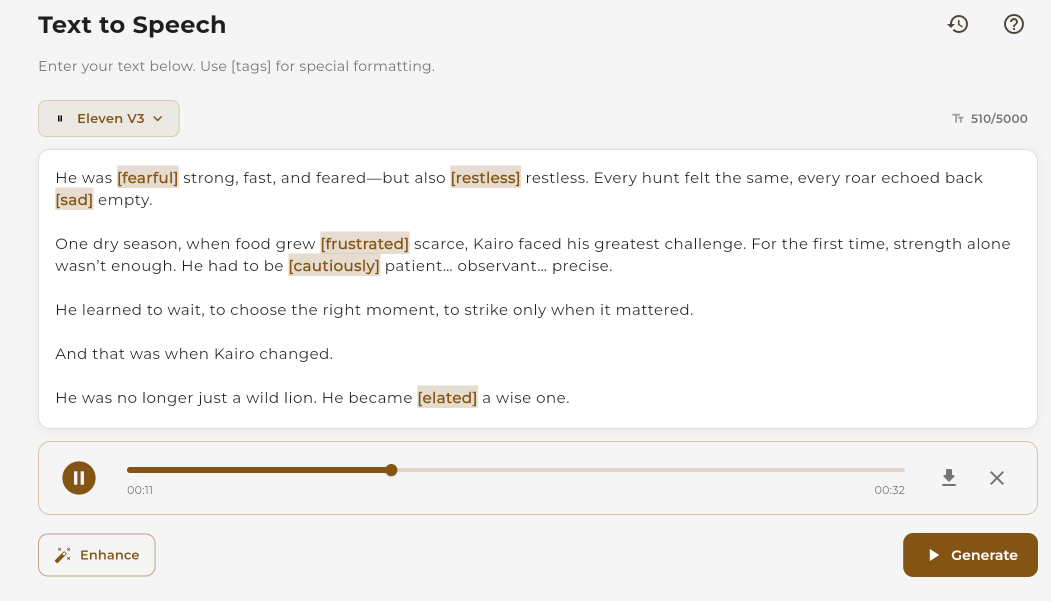
Enhance your generated audio with ambient sounds for a more immersive experience.
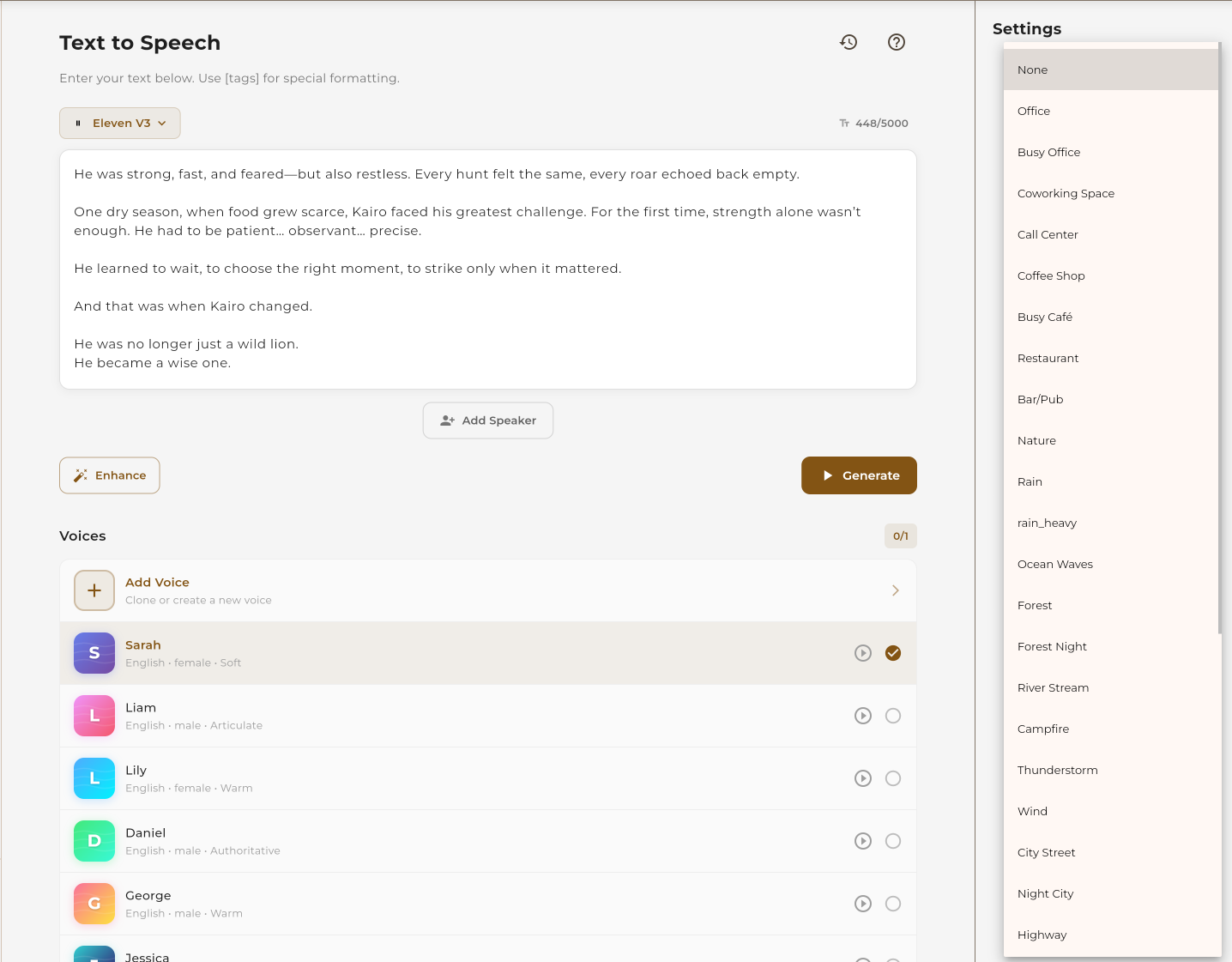
In the TTS panel, look for the background noise option. Click to open the noise selector.
Browse categories and select the ambient sound that fits your content. Preview sounds before applying.
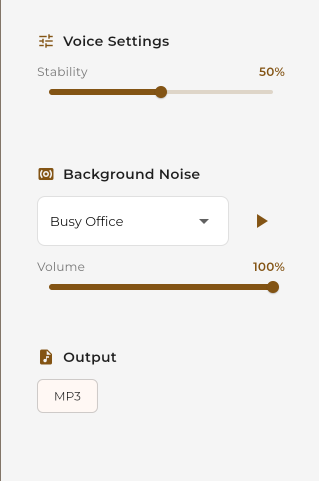
Generate your TTS audio. The background noise will be mixed with the speech automatically and included in your download.
Make your AI agent calls sound more natural with real-time ambient sounds.
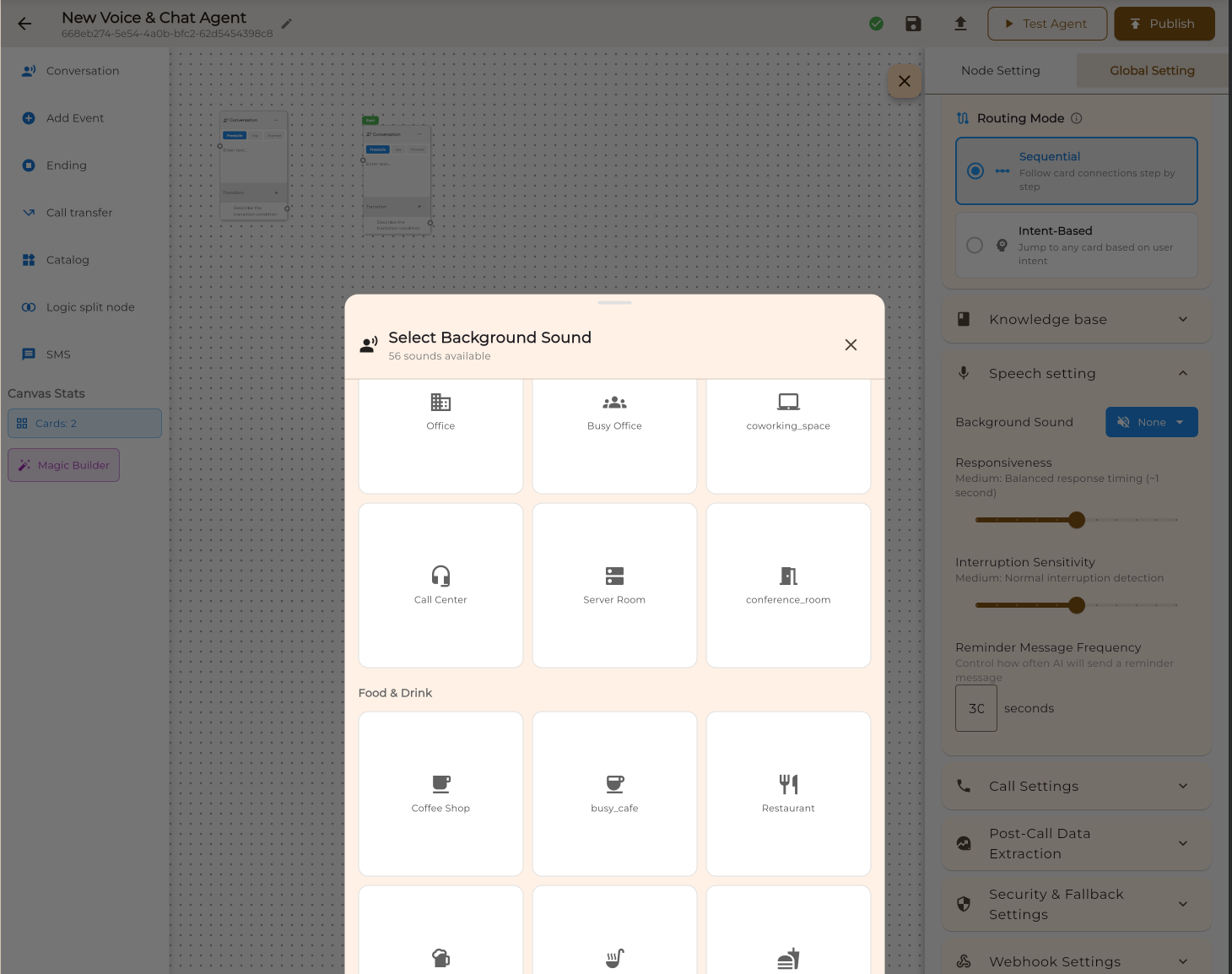
When creating or editing an AI agent, navigate to the voice settings section where you'll find the background noise option.
Select the ambient sound that matches your agent's persona. A call center agent might use "Busy Office" while a concierge might use "Hotel Lobby".
Save your agent and make a test call. The background noise plays in real-time during conversations, making your AI sound more natural.

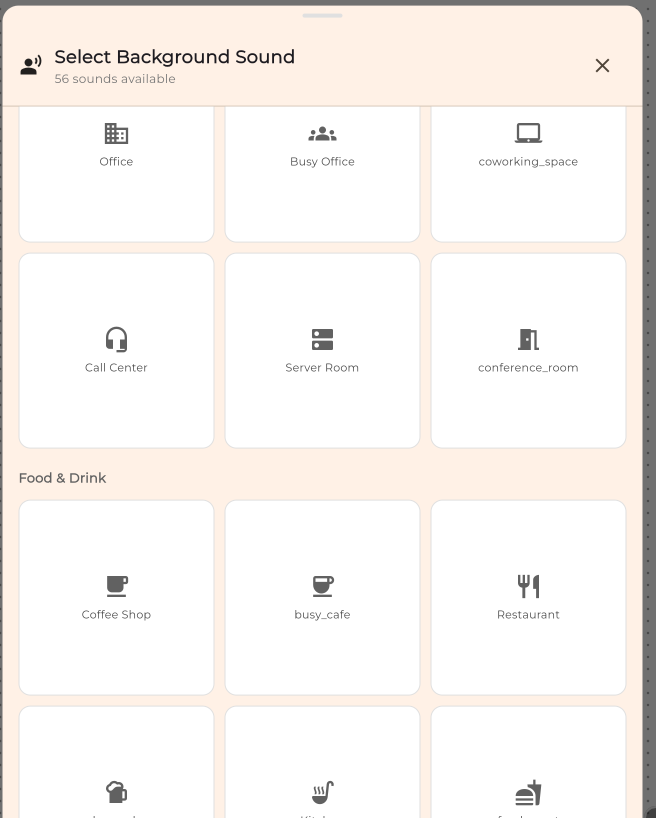
Choose from a wide variety of realistic background sounds organized by category.
Get the most out of background noise with these recommendations.
Use "Call Center" for support agents, "Office" for business assistants, "Café" for casual chatbots.
Background noise should be subtle. If it's distracting, it defeats the purpose.
Always make test calls to ensure the noise level and type work well with your voice.
Avoid loud or jarring sounds like "Construction" or "Arcade" for professional calls.
A medical support agent shouldn't sound like they're at a café.
Rain and thunder can mask speech. Use sparingly and at low volume.